Changing to Kind in Dockers Desktop
Problems:
When changing the cluster provision in Docker Desktop to Kind (with 3 nodes) the following error is show when checking the version of kubectl.
1
2
3
4
5
~/source/replicate$ kubectl version
Client Version: v1.32.2
Kustomize Version: v5.5.0
The connection to the server kubernetes.docker.internal:6443 was refused - did you specify the right host or port?
Steps:
- The first thing I did was backed up my source file code and deinstalled and reinstalled Ubuntu24.04 LTS. I still get the same error.
I asked Copilot this question and got this response. Question: I changed the Kubernetes configuration on my Docker.Desktop to Kind with 3 nodes. Now when I check my kubectl version I get this with a error at the end, what should I do? kubectl version Client Version: v1.32.2 Kustomize Version: v5.5.0 The connection to the server kubernetes.docker.internal:6443 was refused - did you specify the right host or port?
GitHub Copilot Response:This error means your kubectl is still trying to connect to the old Docker Desktop Kubernetes cluster, which is no longer running. Since you switched to a Kind cluster, you need to update your kubeconfig to point to the new Kind cluster.
To fix: List available contexts:
1
2
3
4
 kubectl config get-contexts

 CURRENT   NAME             CLUSTER          AUTHINFO         NAMESPACE
 *         docker-desktop   docker-desktop   docker-desktop
Switch to the Kind context (replace kind-kind with your Kind context name if different): Verify connection:
1
 kubectl config use-context kind-kind
If you see cluster info without errors, your kubectl is now connected to the Kind cluster.
1 2 3 4 5 6 7 8 9 10
kubectl cluster-info E0606 13:16:22.025717 4224 memcache.go:265] "Unhandled Error" err="couldn't get current server API group list: Get \"https://kubernetes.docker.internal:6443/api?timeout=32s\": dial tcp 127.0.0.1:6443: connect: connection refused" E0606 13:16:22.030947 4224 memcache.go:265] "Unhandled Error" err="couldn't get current server API group list: Get \"https://kubernetes.docker.internal:6443/api?timeout=32s\": dial tcp 127.0.0.1:6443: connect: connection refused" E0606 13:16:22.036123 4224 memcache.go:265] "Unhandled Error" err="couldn't get current server API group list: Get \"https://kubernetes.docker.internal:6443/api?timeout=32s\": dial tcp 127.0.0.1:6443: connect: connection refused" E0606 13:16:22.041898 4224 memcache.go:265] "Unhandled Error" err="couldn't get current server API group list: Get \"https://kubernetes.docker.internal:6443/api?timeout=32s\": dial tcp 127.0.0.1:6443: connect: connection refused" E0606 13:16:22.047983 4224 memcache.go:265] "Unhandled Error" err="couldn't get current server API group list: Get \"https://kubernetes.docker.internal:6443/api?timeout=32s\": dial tcp 127.0.0.1:6443: connect: connection refused" To further debug and diagnose cluster problems, use 'kubectl cluster-info dump'. The connection to the server kubernetes.docker.internal:6443 was refused - did you specify the right host or port?- This fix didn’t work. More Info to come.
Solution:
Start a Powershell command line and run this command and it should work. The command works in Powershell but not the WSL Linux install
1
2
3
4
5
kubectl get nodes
NAME                    STATUS     ROLES           AGE   VERSION
desktop-control-plane   Ready      control-plane   48m   v1.31.1
desktop-worker          NotReady   <none>          48m   v1.31.1
desktop-worker2         NotReady   <none>          48m   v1.31.1
To fix the issue set the environment in your WSL Linux install to this below (Windows path to the Kubernetes config)
1
export KUBECONFIG=/mnt/c/Users/<YourUserName>/.kube/config
To fix permanently if using the default shell bash (default on Wsl Ubuntu ) add this to the ~./bashrc file.
1
export KUBECONFIG=/mnt/c/Users/<YourUserName>/.kube/config
System:
- Wsl2 on Windows 11
- Distro installed is Ubuntu24.04 LTS
WSL 2
1
2
wsl --uninstall Ubuntu-24.04
wsl --install Ubuntu-24.04
Docker Desktop Settings page
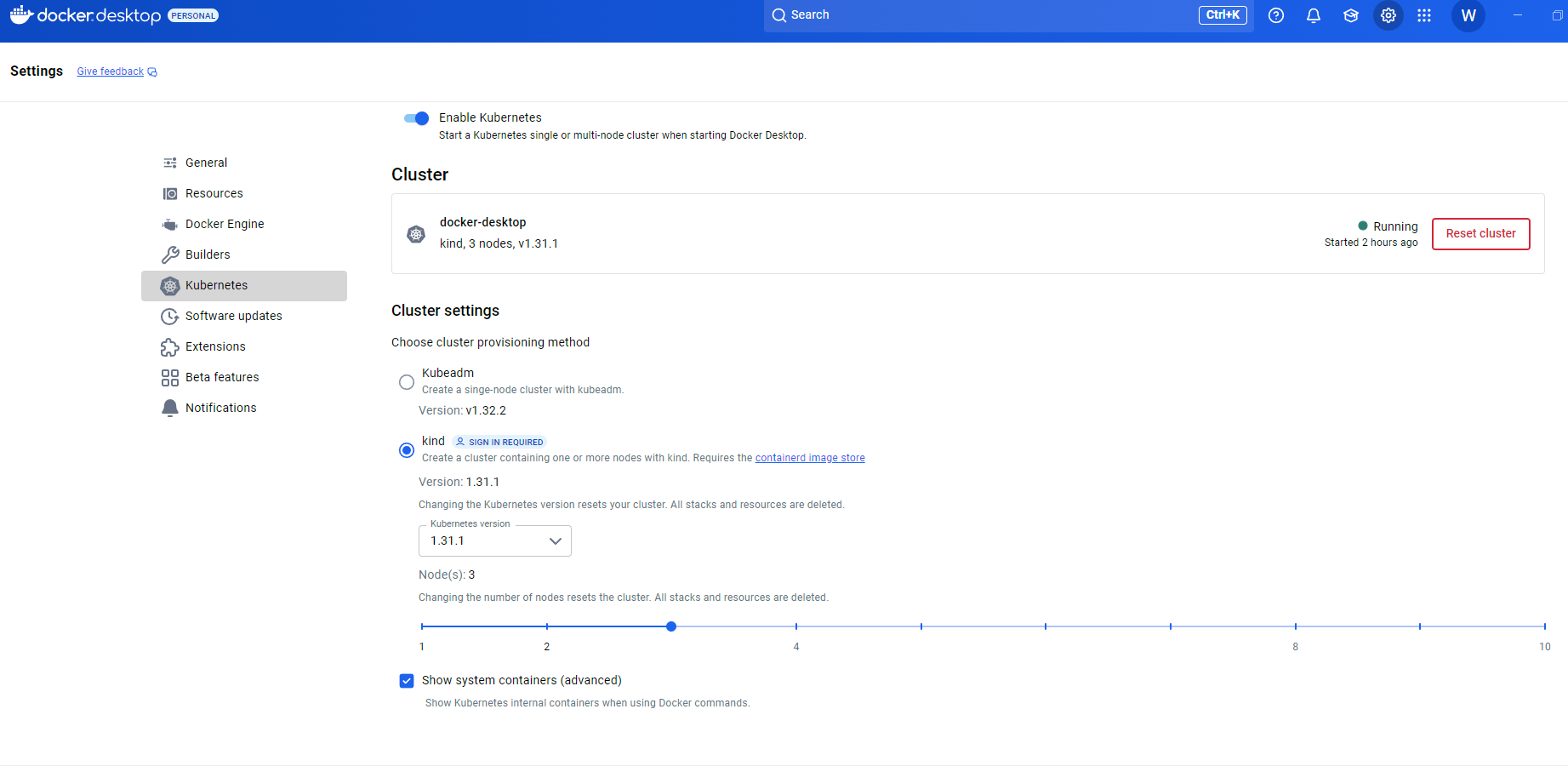 Docker Desktop settings